Software and Tools
Stellar Repair for Outlook Review: Desktop vs Online PST Repair, Tested
By Amjid Ali · · 10 min read
In this article
Sponsored review. Stellar paid for this post and supplied the licence and the test file. They checked the draft for technical accuracy. We installed, ran and timed both products ourselves on 27 October 2026, and the results, the cons and the verdict are ours.
A corrupt PST rarely announces itself politely. Outlook hangs on "Processing", throws an error about the data file, or opens with half your folders missing. Microsoft's own fix, ScanPST, handles light damage and gives up on anything worse.
So we took one damaged mailbox and ran it through both of Stellar's options for Outlook PST repair: the Stellar Repair for Outlook desktop app and the newer Stellar Online PST Repair service in the browser. Same file, same day, same machine. This is what happened, including the parts that didn't go to plan.
If you read our earlier look at Stellar Repair for Outlook from 2025, this is the follow-up: a newer version, a second product and harder numbers.
The short version
- The desktop app did the job. It rebuilt the whole folder tree of our corrupt file in about 3 minutes, showed every email, contact and calendar entry before saving, and produced a PST that ScanPST rated as healthy apart from minor inconsistencies.
- It needs classic 64-bit Outlook installed. No Outlook, no repair. We found that out the hard way.
- The online service is quick and needs no install, but "free" means one file up to 500 MB, you need an account, and the preview is a list of folder names, not your actual emails.
- For a mailbox that matters, buy the desktop app. For a small personal PST on a machine you can't install software on, the online tool is worth a go.
How we tested
| Machine | Windows 11 virtual machine, 11.7 GB RAM |
| Outlook | Microsoft 365 Apps, classic Outlook 64-bit (installed during the test, see below) |
| Test file | kacper.pst, 125 MB, supplied by Stellar. ScanPST confirmed it was damaged. |
| Desktop app | Stellar Repair for Outlook Professional, version 14.0.0.1 |
| Online service | repair.stellarinfo.com/outlook in Chrome, same VM |
| Baseline | Microsoft Outlook Inbox Repair Tool (ScanPST) from the same Office install |
We checked the installer before running it: it came from Stellar's own product page, carried a valid code-signing certificate in Stellar Information Technology's name, and Windows Defender found nothing.
The baseline: what ScanPST made of the file
Before touching Stellar, we pointed ScanPST at a copy of the original file. It found errors and could see 42 folders and 51 items.
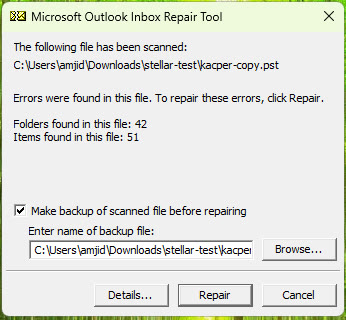
Remember those two numbers. They are the yardstick for everything below.
Stellar Repair for Outlook (desktop app)
Installing and activating
Setup is a standard Windows wizard: language, licence agreement, install folder (it needs about 200 MB), Start Menu folder, desktop shortcut. It took about 3 minutes. Nothing else was bundled in.
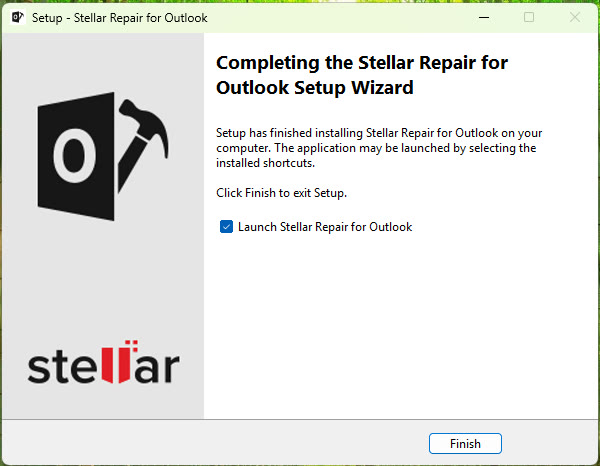
One small irritation: clicking Finish also opened a Stellar "installation successful" web page in the browser without asking.
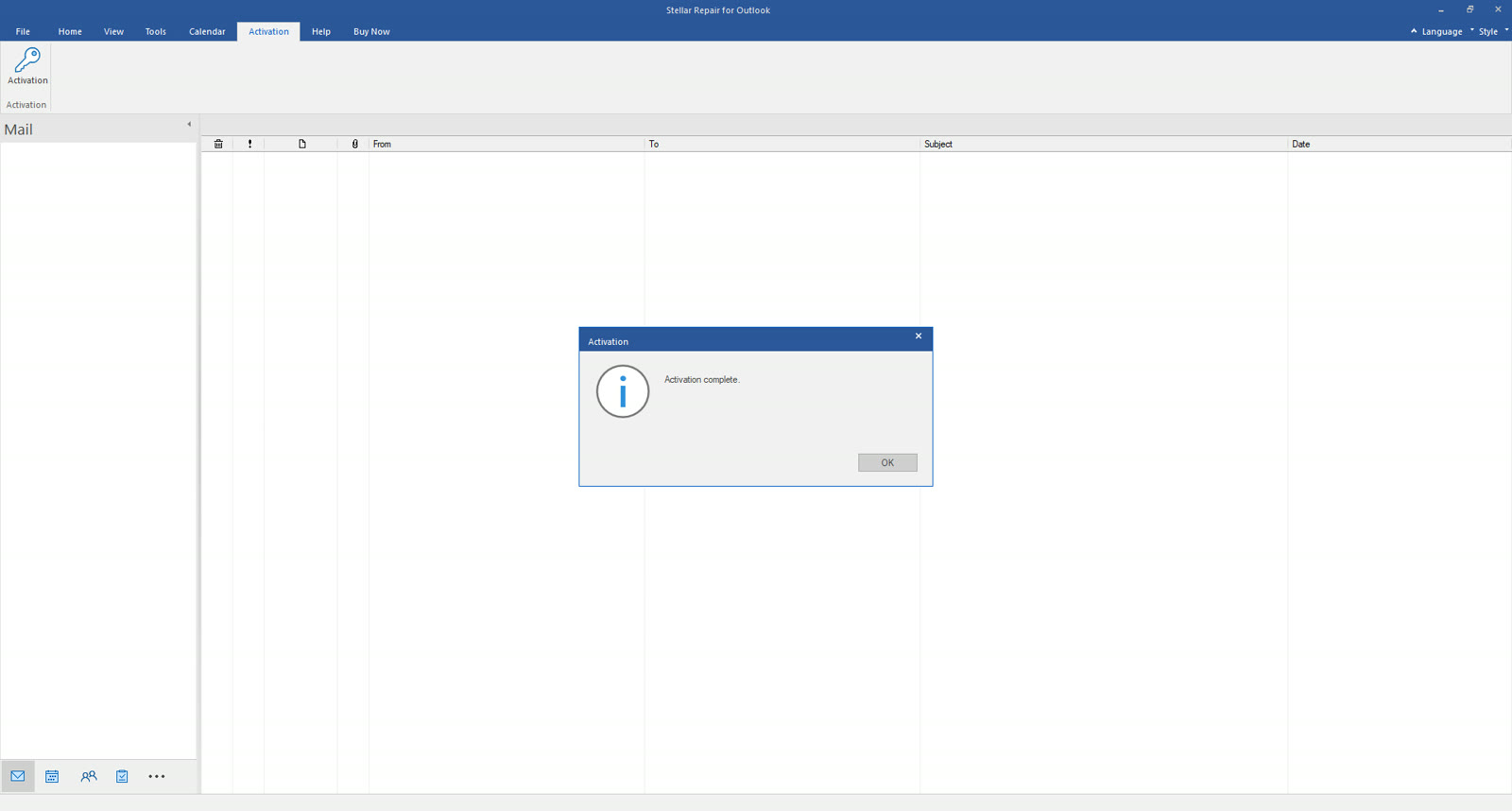
Activation sits under its own tab. Paste the key, click Activate, and a few seconds later it says "Activation complete."
The catch: you need classic Outlook
Our test machine only had the new Outlook app that ships with Windows 11. The moment we clicked Select Outlook Data File, Stellar stopped us:
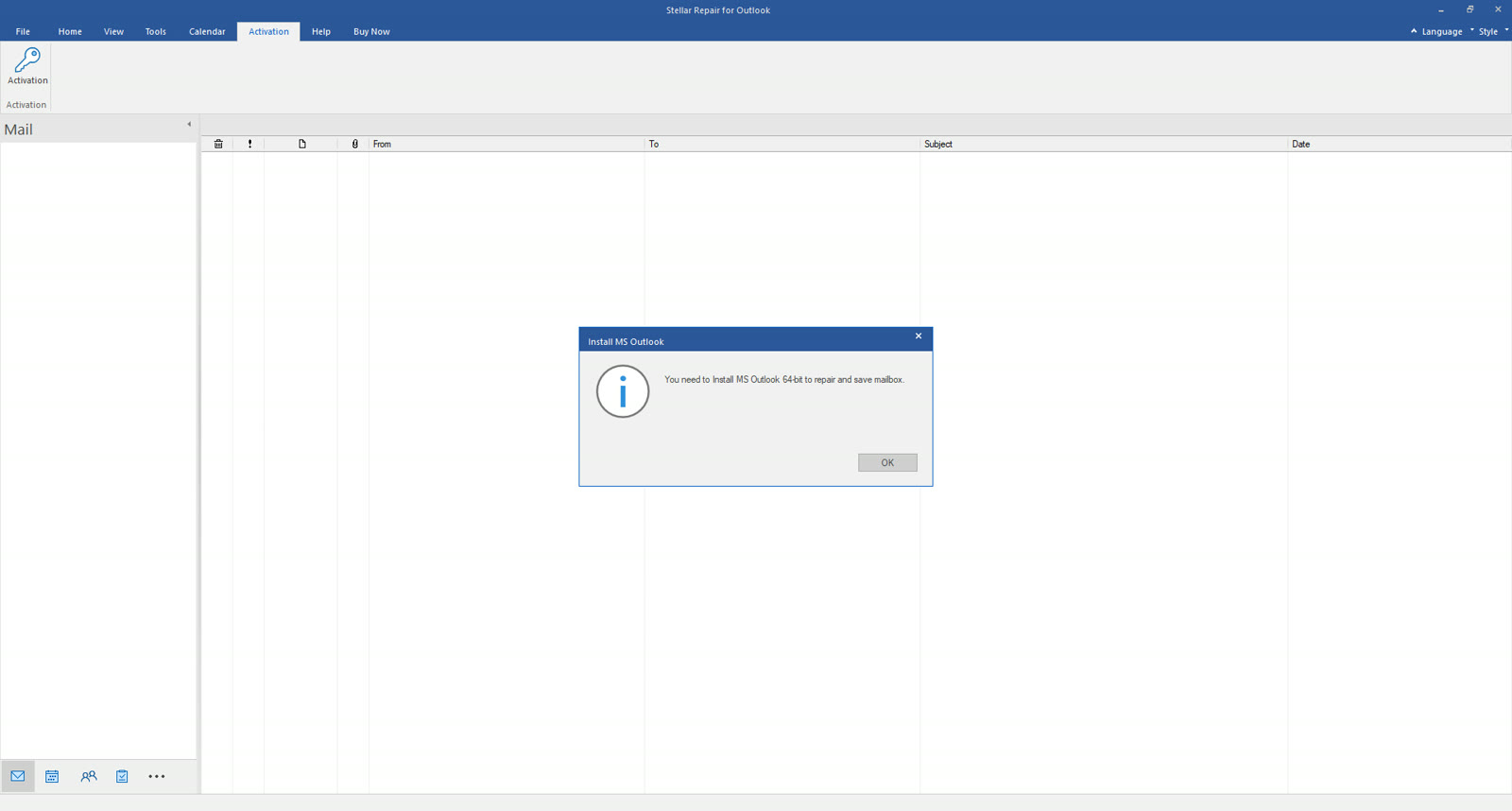
The product page lists Windows versions, processor, RAM and disk space. We didn't see Outlook mentioned in what we read. It should be in bold at the top, because it rules out two common situations: a machine where you uninstalled Outlook because it kept crashing, and anyone who has already moved to the new Outlook.
We installed classic 64-bit Outlook through Microsoft's Office Deployment Tool (about 20 minutes and 6 GB of disk), relaunched Stellar, and the error was gone. Outlook doesn't need to be signed in or activated for Stellar to use it.
Running the repair
Select Outlook Data File gives you two routes: let it search for your Outlook profiles, or choose the file yourself. We chose manually, browsed to the PST and clicked Repair.
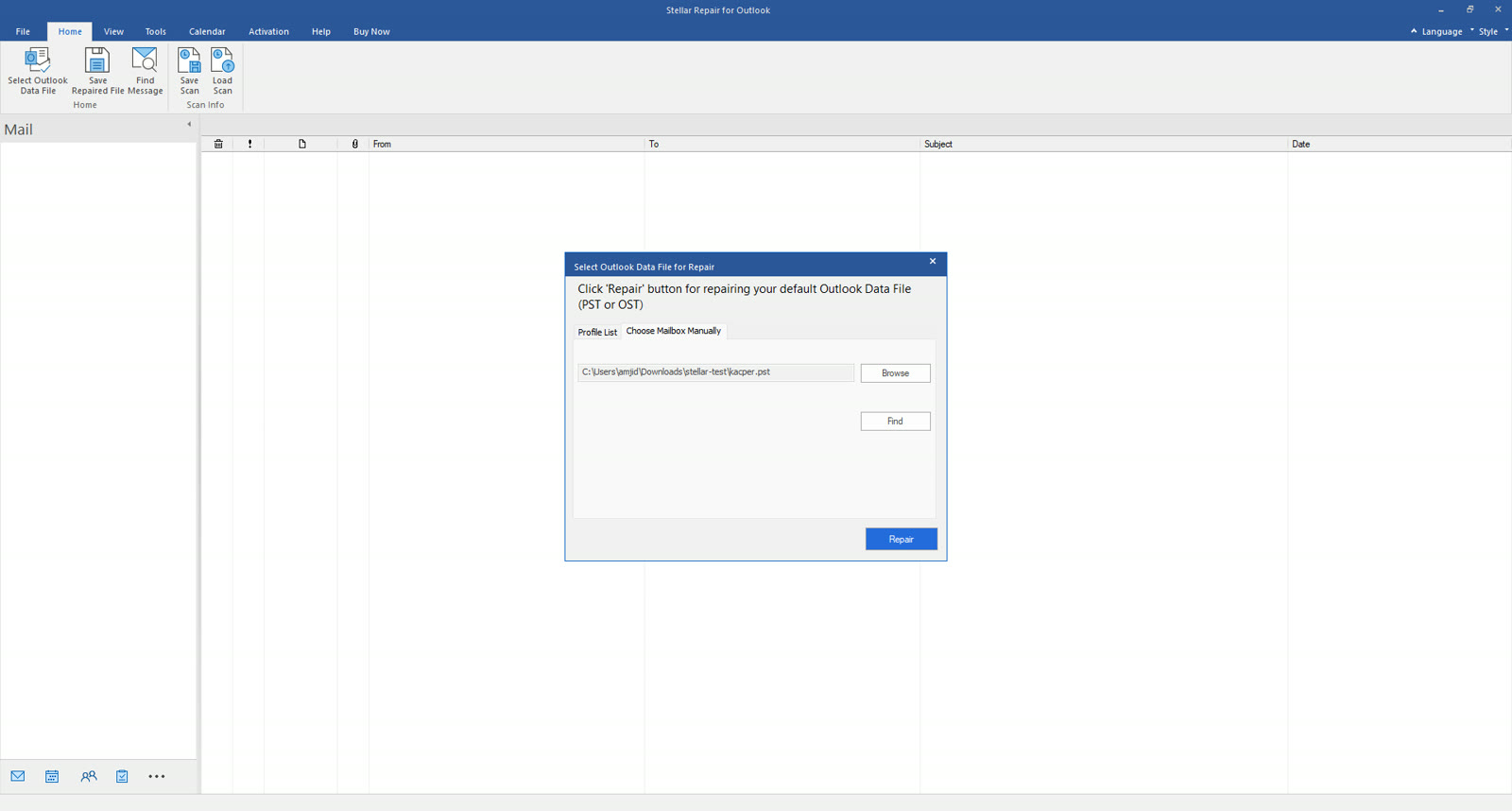
It works in two passes. First it analyses the file, then it rebuilds the folder tree one folder at a time, and you can watch folders appear on the left as it goes.
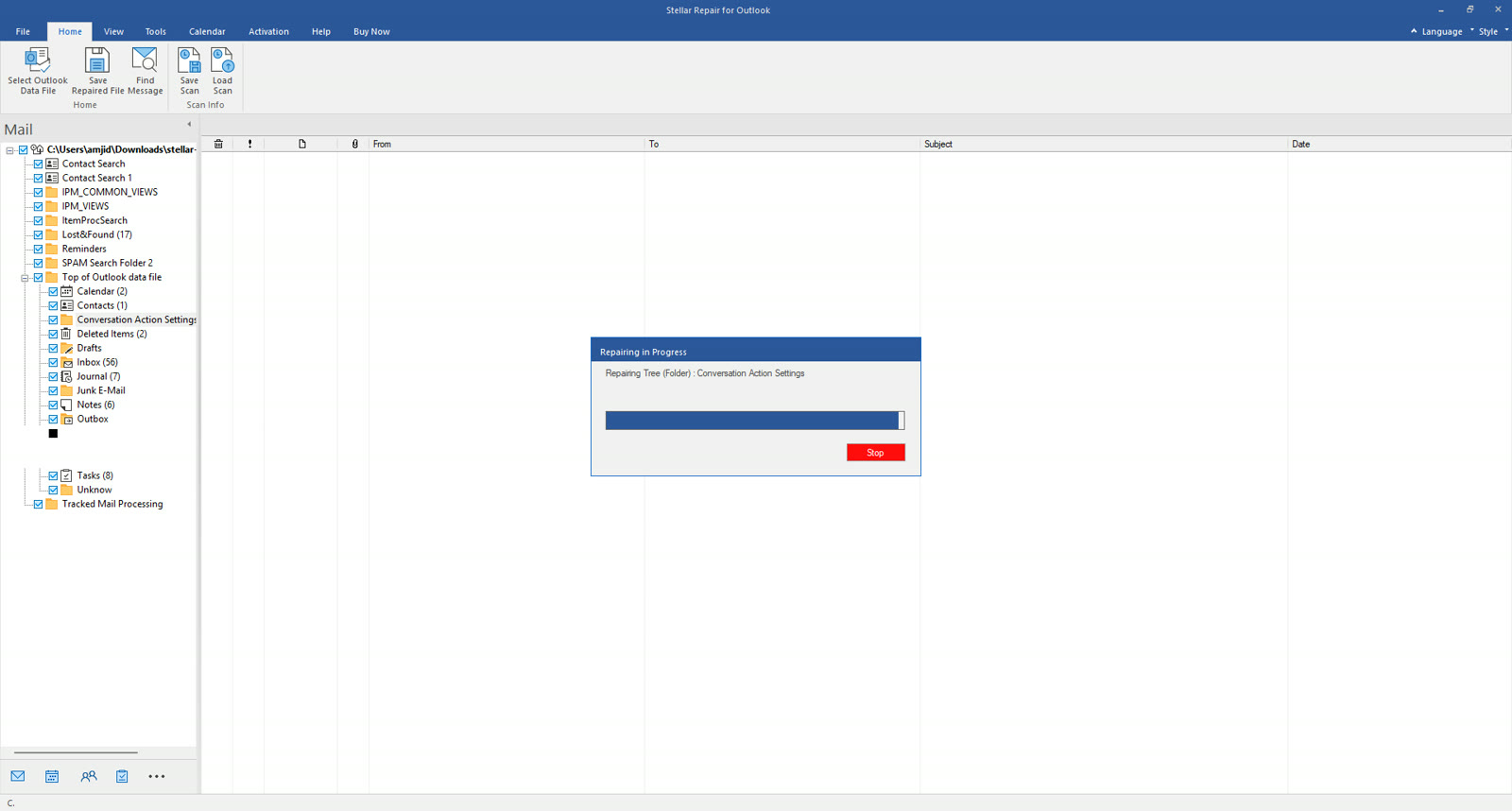
About 3 minutes later it reported "Selected file has been repaired." The tree held 60 emails plus everything else: Inbox (56), Lost&Found (17), Tasks (8), Journal (7), Notes (6), Calendar (2), Deleted Items (2) and a Contacts folder, along with Outlook's hidden Recoverable Items folders.
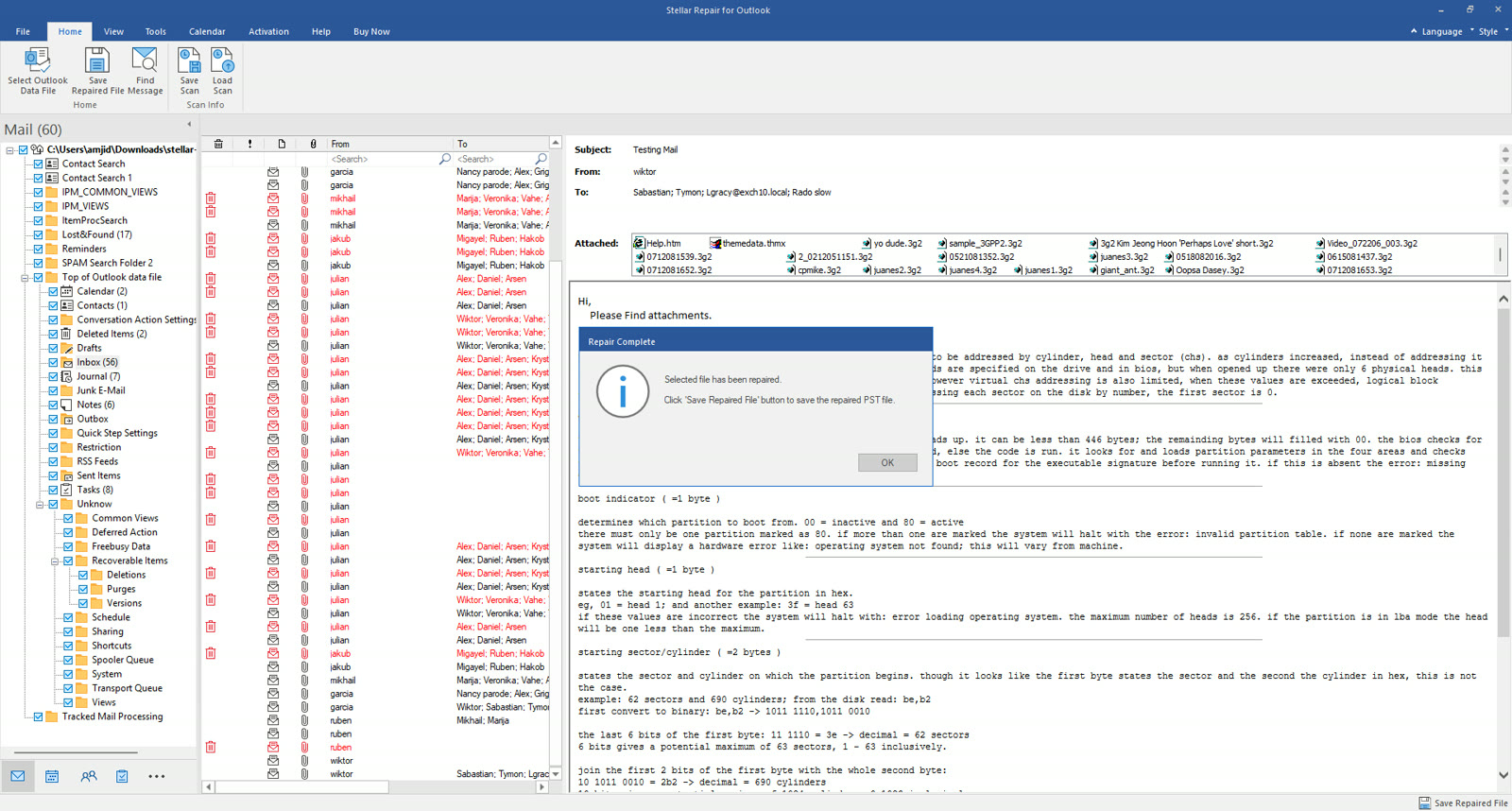
Checking what came back before you save
This is the part that earns the licence fee. You can open every recovered item before you commit to saving anything.
Deleted emails appear in red. We opened one: full formatted HTML body, sender, recipients and all three attachments (a JPG, a PDF and a PNG) intact. The preview pane was slow the first time, taking about 8 seconds and flashing "Can't reach this page" before the message rendered.
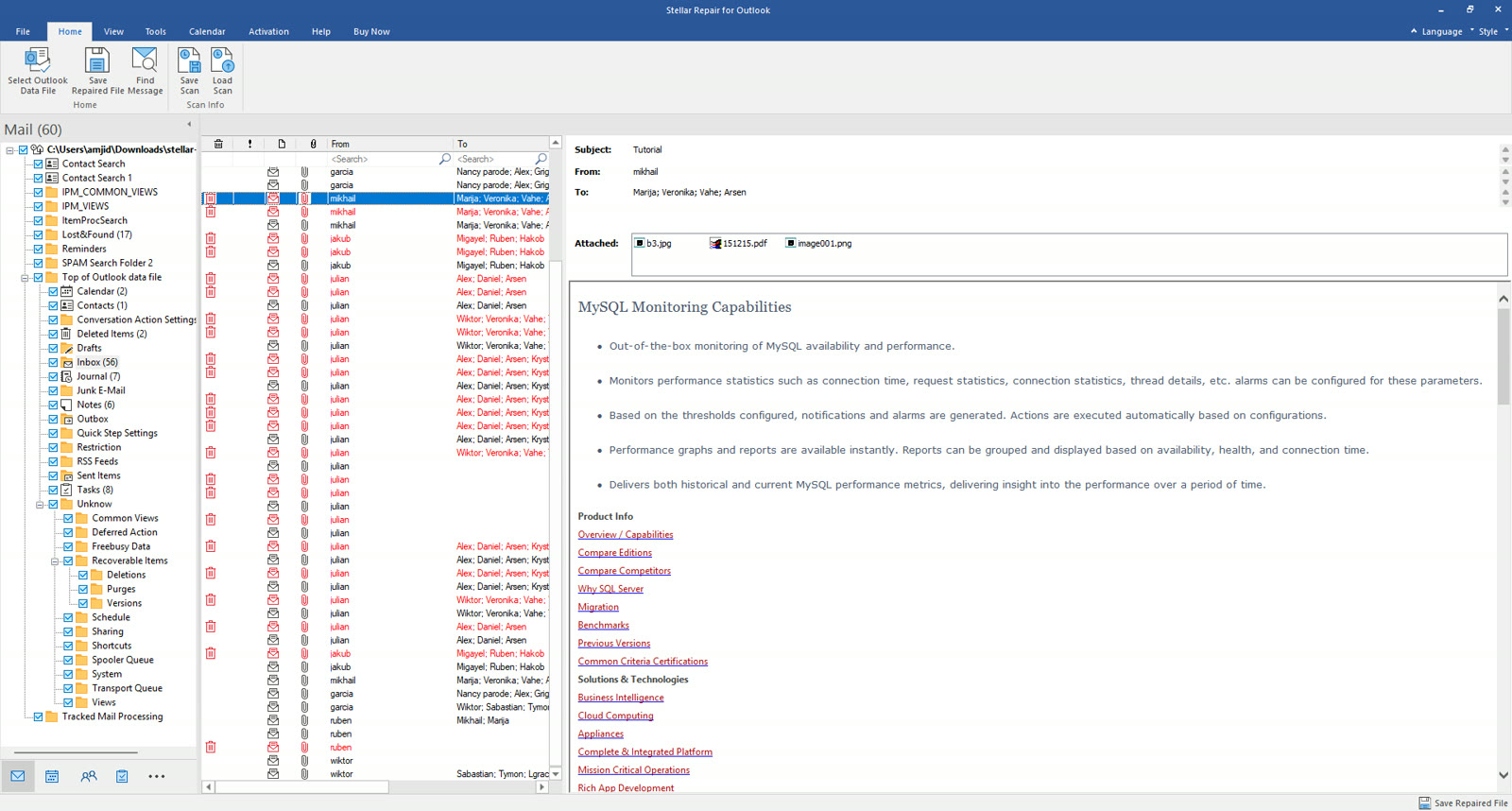
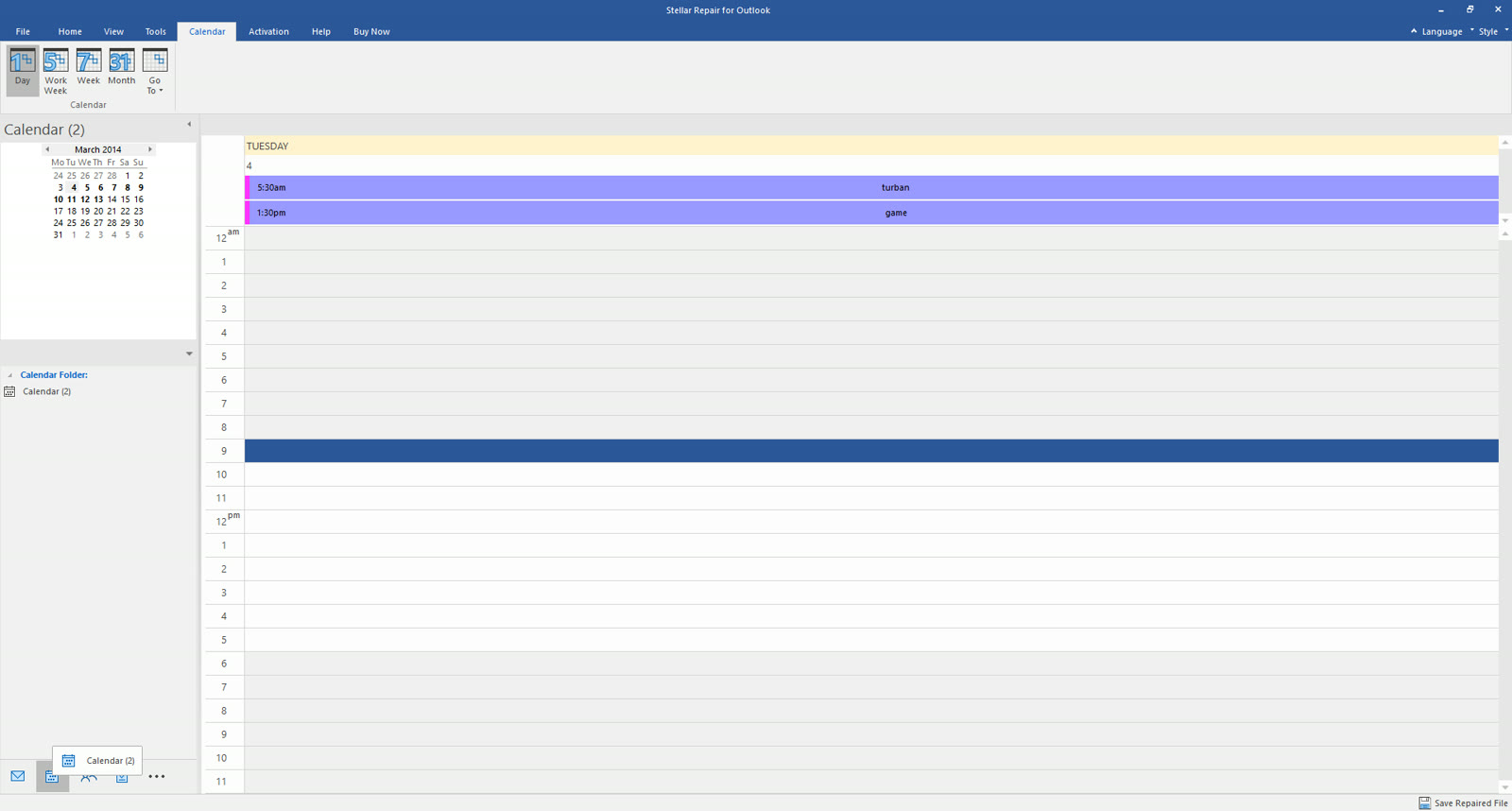
The calendar view has day, work week, week and month layouts. Both appointments came back with their times.
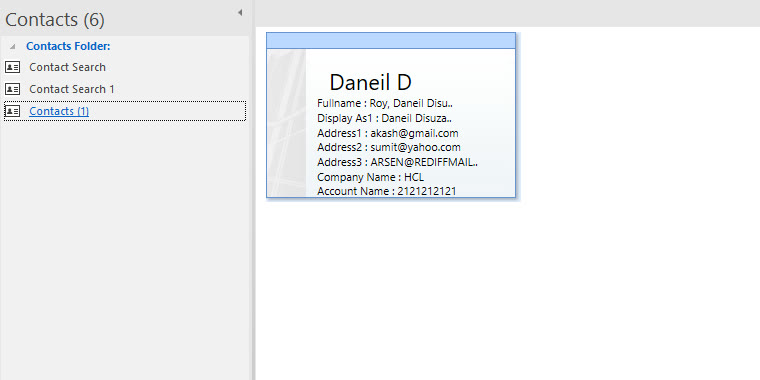
The contact card came back whole: name, three email addresses, company and account number. The Contacts view opens blank until you click a contacts folder, which confused us for a moment.
Saving the repaired file
Save Repaired File offers PST, MSG, EML, RTF, HTML and PDF. Stellar says the higher Technician edition can also export straight to Microsoft 365 and live Exchange. We tested Professional, which doesn't.
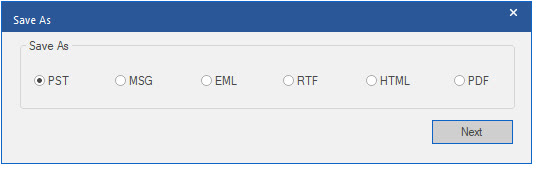
Look closely at the next screen:
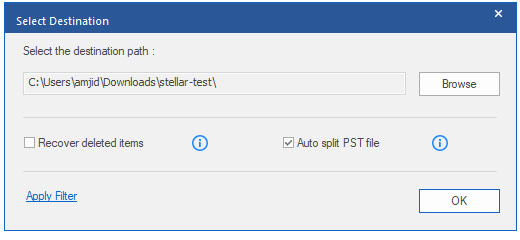
"Recover deleted items" is unticked by default. You have just spent five minutes looking at deleted emails in red in the preview, and unless you tick this box, they won't be in the file you save. We ticked it. Auto split PST file is on by default, which keeps large outputs manageable.
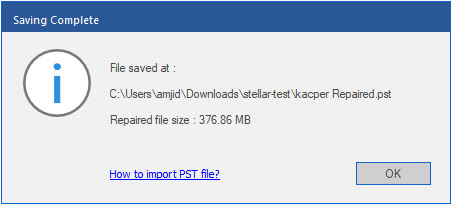
Saving took about 2 minutes. The new file was 376.86 MB, three times the size of the 125 MB original, so plan for that much free space.
The independent check
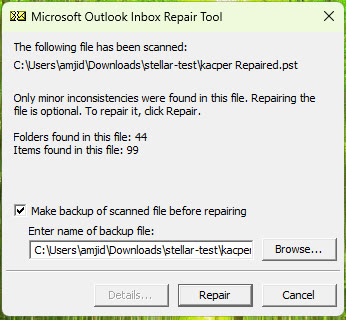
We ran ScanPST again, this time on Stellar's output. It took about 14 minutes on the larger file and came back with:
| ScanPST result | Original file | After Stellar repair |
|---|---|---|
| Verdict | Errors found, repair needed | Only minor inconsistencies, repair optional |
| Folders it could see | 42 | 44 |
| Items it could see | 51 | 99 |
Nearly double the items, and a file Microsoft's own tool no longer flags as broken. Part of the jump is the deleted items we asked Stellar to keep. It isn't spotless by ScanPST's standard, and we'd rather say so than pretend otherwise, but "minor inconsistencies, repair optional" is the result you want.
We didn't open the repaired PST in a signed-in Outlook profile on camera. Our test install of Office was unactivated, and we weren't going to put a real mailbox account into a test VM.
Stellar Online PST Repair
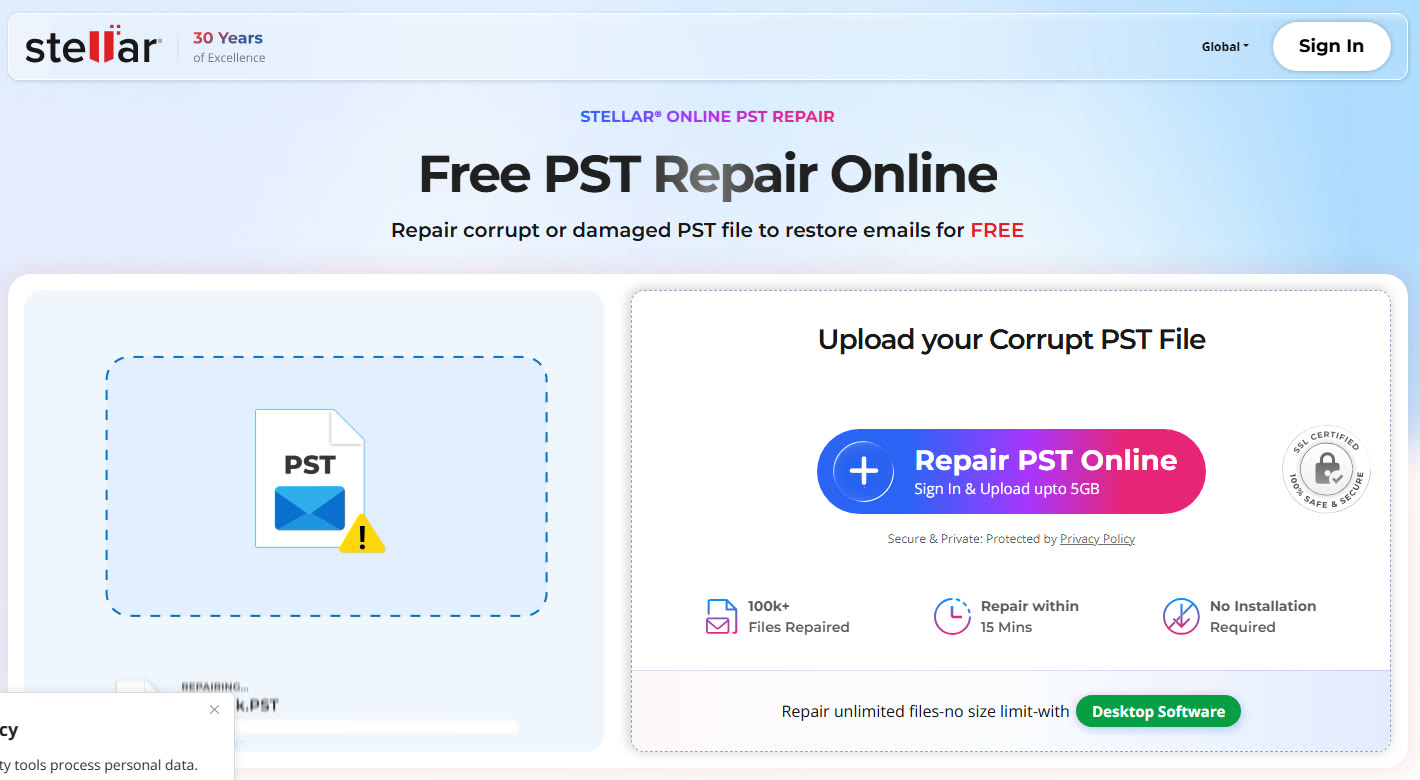
The online service lives at repair.stellarinfo.com/outlook and promises a fix "within 15 mins" with no installation.
Sign-in comes first
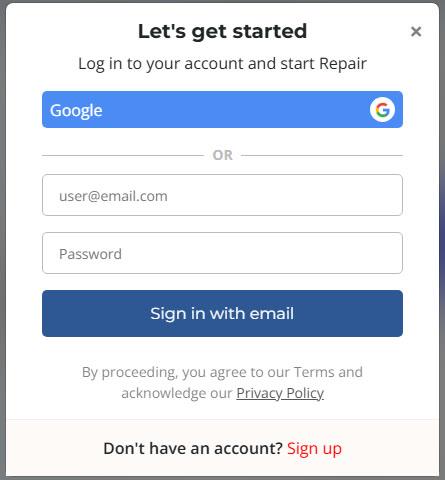
The page headline says free, but the upload button says "Sign In & Upload". Click it and you get a login box: Google, or email and password, or sign up. There is no anonymous option.
Upload, repair, preview
Once signed in, a three-step tracker runs Upload PST, Repair PST, then Preview & Save. Our 125 MB file uploaded in about a minute.

Start Repair moved through Analyzing, Repairing and Generating Preview. About 5 minutes later, 8 minutes after we started the upload, it reported "File Repaired Successfully".
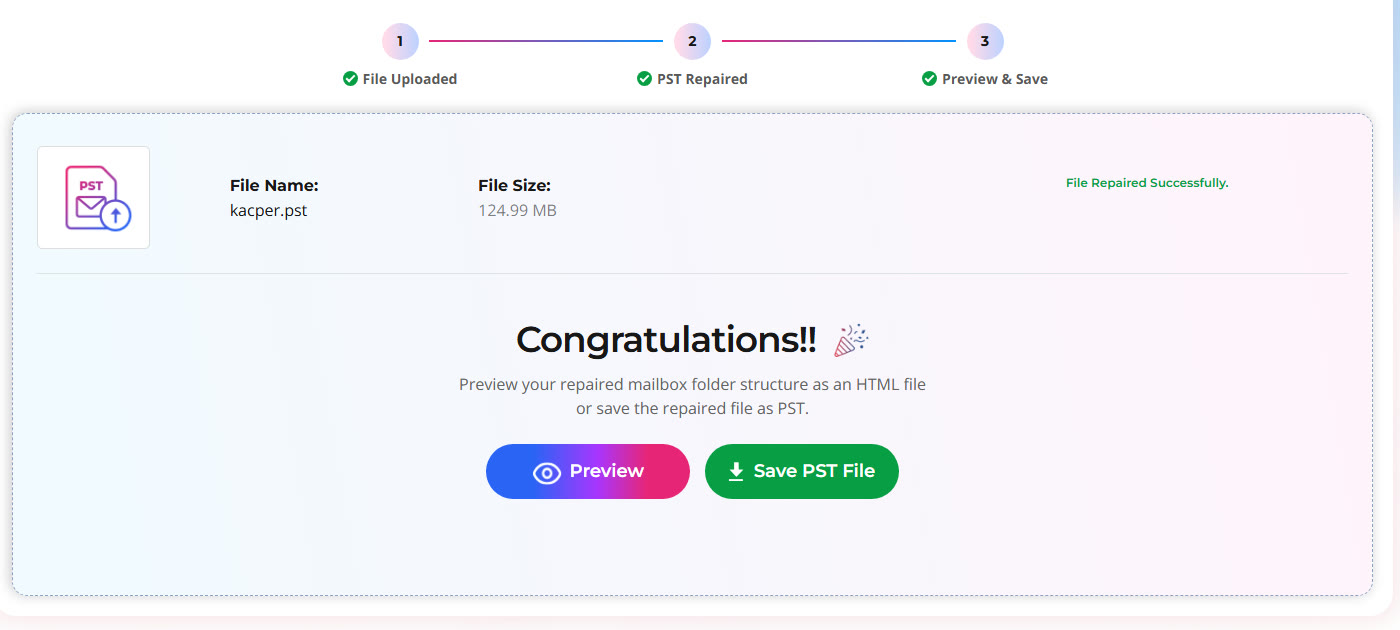
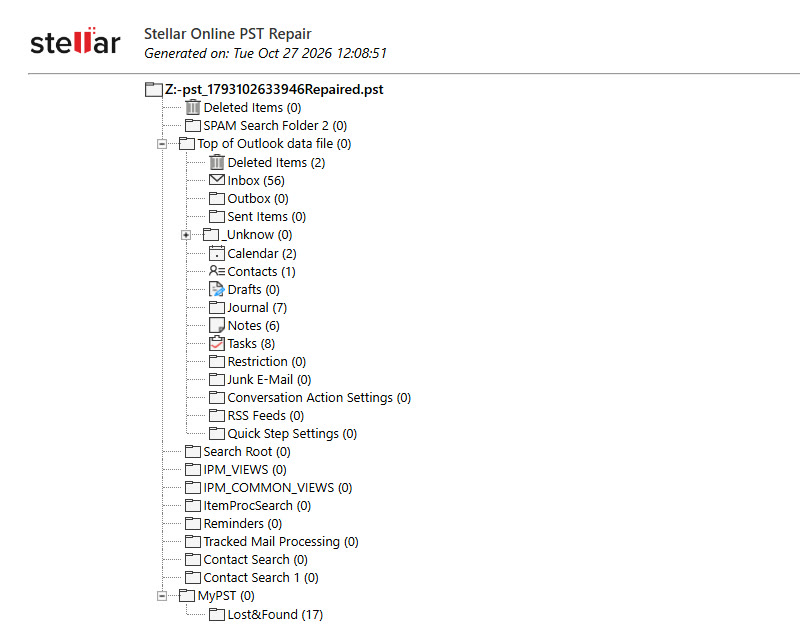
The preview disappointed. It downloads a small HTML file showing the folder tree and item counts. You can't open a single email, contact or appointment. The counts matched the desktop app exactly (Inbox 56, Lost&Found 17, Tasks 8 and so on), so the repair engine looks the same. You just can't see your data before you take it.
What's free and what isn't
Clicking Save PST File brings up the plans:
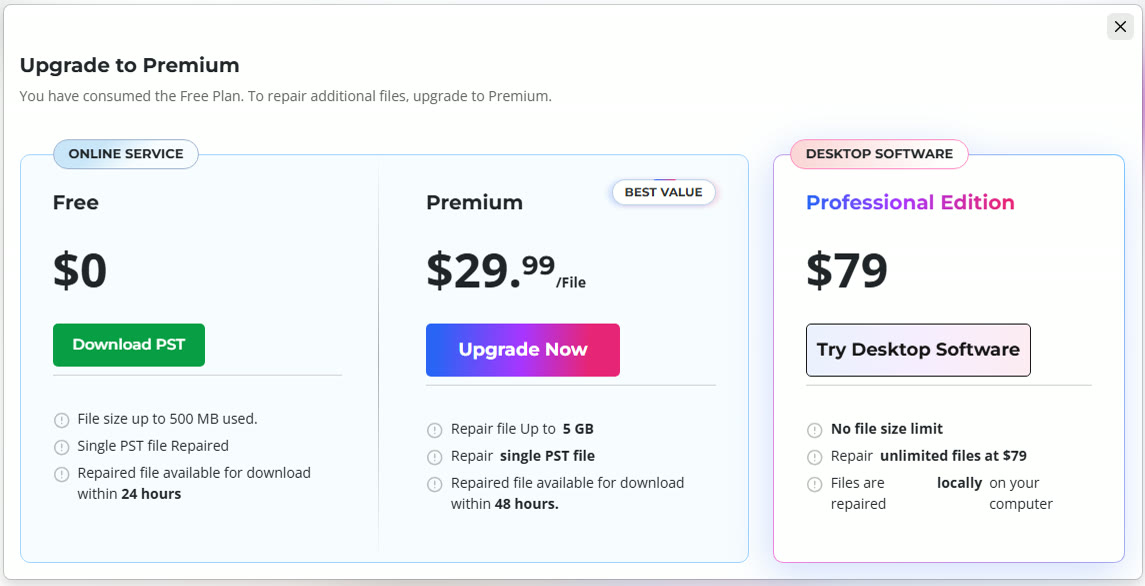
| Plan | Price | Limit | Download window |
|---|---|---|---|
| Online Free | US$0 | One PST, up to 500 MB | 24 hours |
| Online Premium | US$29.99 per file | One PST, up to 5 GB | 48 hours |
| Desktop Professional | US$79 | No size limit, unlimited files, repaired locally | Not applicable |
Prices as shown on 27 October 2026.
The free download worked. We got a 339 MB repaired PST in about a minute, with a valid PST header.
Privacy
Your mailbox leaves your computer. The preview link pointed to Amazon S3 storage in Frankfurt (eu-central-1). For a personal mailbox, that may be fine. For a client's or employee's mailbox, check your own obligations before uploading, and read Stellar's privacy policy for how long files are kept.
Desktop vs online: side by side
| Desktop app | Online service | |
|---|---|---|
| Needs installing | Yes, about 3 minutes | No |
| Needs classic Outlook | Yes, 64-bit | No |
| Needs an account | No | Yes |
| Time on our 125 MB file | About 5 minutes (repair plus save) | About 8 minutes (upload plus repair) |
| Preview | Every email, attachment, contact and appointment | Folder names and counts only |
| Deleted items | Recovered, shown in red, optional on save | Not shown in preview |
| Output formats | PST, MSG, EML, RTF, HTML, PDF | PST |
| File size limit | None stated | 500 MB free, 5 GB paid |
| Where your data goes | Stays on your PC | Uploaded to Stellar's cloud |
| Price | US$79 | Free once, then US$29.99 per file |
When to use each
Use the online service when the PST is under 500 MB, you can't install software on the machine, Outlook isn't installed, and the mailbox isn't sensitive. It is quicker to start and genuinely needs nothing on your computer.
Use the desktop app when the file is large, the mailbox is confidential, you need to check specific emails before trusting the result, or you will repair more than two or three files. At US$29.99 a file online, the US$79 desktop licence pays for itself on the third.
Pros and cons
What we liked
- The desktop repair was fast and complete on our file: full folder tree in about 3 minutes.
- Full preview before saving, including deleted items, attachments, calendar and contacts.
- ScanPST went from "errors found, 51 items" to "minor inconsistencies, 99 items" after the repair.
- Six output formats from the desktop app.
- The online service needs no install and no Outlook, and the free tier really does give you the repaired PST.
What we didn't
- The desktop app won't work without classic 64-bit Outlook, and the product page doesn't make that obvious.
- "Recover deleted items" is off by default when saving.
- The repaired file was three times the size of the original.
- The online preview shows folder counts, not your emails, and the free tier stops at 500 MB.
- You must create a Stellar account to use the "free" online repair.
- Setup opens a marketing page in your browser without asking.
Verdict
Stellar Repair for Outlook did what ScanPST couldn't on our test file: it rebuilt the mailbox, let us check the emails, calendar and contacts before saving, and handed back a PST that Microsoft's own tool rated as healthy apart from minor inconsistencies. The Outlook requirement and the unticked deleted-items box are real annoyances, and both are easy to work around once you know about them.
The online service is a useful first try for a small personal PST. For anything bigger than 500 MB, anything confidential, or any mailbox you need to check line by line, buy the desktop app.
You can download Stellar Repair for Outlook from Stellar, or try the Stellar Online PST Repair service on a file under 500 MB first.
If your problem sits on the server side instead, our guide to mounting an Exchange database after a dirty shutdown with Eseutil covers that.
Frequently asked questions
Does Stellar Repair for Outlook need Outlook installed?+
Yes. In our test, version 14 of the desktop app refused to open a PST until classic 64-bit Outlook was installed. The message was: You need to Install MS Outlook 64-bit to repair and save mailbox. The new Outlook app for Windows does not count.
Is Stellar's online PST repair really free?+
Partly. You need a Stellar account, and the free plan covers one PST file up to 500 MB, with the repaired file available to download for 24 hours. Larger files, up to 5 GB, cost US$29.99 per file.
How long does Stellar Repair for Outlook take?+
On our 125 MB test file the desktop app repaired it in about 3 minutes and saved a new PST in about 2 more. The online service took about 8 minutes end to end, including a 1 minute upload.
Can Stellar recover deleted Outlook emails?+
Yes. Deleted items show in red in the desktop preview. When you save, the Recover deleted items box is unticked by default, so tick it if you want them in the new PST.
Is Stellar Repair for Outlook better than ScanPST?+
On our file, yes. ScanPST found errors in the original and could see 51 items. After Stellar's repair, ScanPST reported only minor inconsistencies and saw 99 items across 44 folders.
Sources
- Stellar Repair for Outlook, Stellar
- Stellar Online PST Repair, Stellar
- Stellar Repair for Outlook user guide, Stellar
Keep reading
 Software and ToolsStellar Repair for Outlook: Can It Really Save Your Corrupted PST Files?We’ve all been there. You start Outlook on a Monday morning, and instead of seeing your usual inbox, you encounter an error message about ... · 5 min read
 Software and ToolsUbuntu Disk contains a file system with errors, check forcedStep-by-step fix for Ubuntu disk error "contains a file system with errors, check forced." Covers fsck repair, preventing data loss, and root cause diagnosis. · 1 min read
 Software and ToolsHow Smart Mileage Tracking Software Simplifies Business Travel ExpensesHow mileage tracking software turns business trips into accurate expense records, cuts admin work and keeps privacy and policy controls in place. · 4 min read