Cloud and Self-Hosting
ERPNext Docker Installation on Windows, Mac and Linux (Version 16 and 15)
By Amjid Ali · · Updated · 4 min read
In this article
Prefer to watch? This video walks through it step by step. Prefer to read? The full guide is below.
To install ERPNext with Docker, install Docker Desktop (Windows or Mac) or Docker Engine (Linux), download the official pwd.yml file from the frappe_docker repository, and run docker compose -p pwd -f pwd.yml up -d. Wait for the create-site container to finish, then open http://localhost:8080 and log in as Administrator with the password admin. As of October 2026 that file starts ERPNext 16 (v16.51.1) with MariaDB 11.8 and Redis.
I use this setup whenever I need a throwaway ERPNext to test a customisation or demo a module, on my Windows laptop and on Linux VMs in my homelab. It is the fastest route from nothing to a working ERPNext.
Quick steps
- Install Docker Desktop (Windows/Mac) or Docker Engine with the compose plugin (Linux).
- Make a folder and download
pwd.ymlinto it. - Run
docker compose -p pwd -f pwd.yml up -d. - Watch
docker logs pwd-create-site-1 -funtil the site is created. - Open
http://localhost:8080, log in as Administrator / admin and run the setup wizard.
Before you start
- Windows 10 or 11 (Home or Pro): Docker Desktop with the WSL 2 backend. Hardware virtualization must be on; if Docker complains, see my guide to enabling virtualization on Windows.
- macOS: Docker Desktop for Apple silicon or Intel.
- Linux: Docker Engine and the
docker composeplugin. New to containers? Start with Docker for beginners. - At least 4 GB of RAM free for Docker (8 GB is better) and about 10 GB of disk for the images.
Check Docker works:
docker --version
docker compose version
Step 1: Download pwd.yml
pwd.yml is a Docker Compose file maintained by the Frappe team. It defines every container ERPNext needs: the backend, frontend (Nginx), websocket, queue workers, scheduler, MariaDB and two Redis instances, plus a one-off create-site job. You do not need to edit it to get started.
On Windows, I keep it in C:\Data\Docker\Frappe. In PowerShell:
mkdir C:\Data\Docker\Frappe
cd C:\Data\Docker\Frappe
curl.exe -L -o pwd.yml https://raw.githubusercontent.com/frappe/frappe_docker/main/pwd.yml
On Linux or macOS:
mkdir -p ~/frappe && cd ~/frappe
curl -L -o pwd.yml https://raw.githubusercontent.com/frappe/frappe_docker/main/pwd.yml
You can also view the file on GitHub and save it from the browser.
Step 2: Start ERPNext
From the folder that holds pwd.yml:
docker compose -p pwd -f pwd.yml up -d
What the flags mean: -p pwd names the project (so the containers are called pwd-...), -f pwd.yml picks the file, up creates and starts the containers and -d runs them in the background. The first run downloads a few GB of images.
Step 3: Wait for the site to be created
The create-site container waits for the database and Redis, then creates a site called frontend and installs ERPNext. Follow it:
docker logs pwd-create-site-1 -f
When it finishes, the container exits. Check the rest are running:
docker compose -p pwd -f pwd.yml ps
You should see backend, frontend, websocket, queue-long, queue-short, scheduler, db, redis-cache and redis-queue up.
Step 4: Log in and run the setup wizard
Open http://localhost:8080 and sign in:
- Username: Administrator
- Password: admin
The setup wizard asks for your language, country, currency, company name and chart of accounts. Change the Administrator password straight after (top right menu, My Settings).
The video shows the same steps on Windows with version 15; the commands are unchanged for version 16.
Run ERPNext 15 instead of 16
The current pwd.yml pins frappe/erpnext:v16.x images. To stay on version 15, change every frappe/erpnext: image tag to a v15 tag and use MariaDB 10.6, which is what v15 was built and tested against. In PowerShell:
(Get-Content pwd.yml) -replace 'frappe/erpnext:v16[0-9.]*','frappe/erpnext:v15.123.0' -replace 'mariadb:11.8','mariadb:10.6' | Set-Content pwd.yml
On Linux or macOS:
sed -i.bak -E 's#frappe/erpnext:v16[0-9.]*#frappe/erpnext:v15.123.0#; s#mariadb:11.8#mariadb:10.6#' pwd.yml
Do this on a fresh project. A database created by v16 cannot be opened by v15.
Stop, start and reset
docker compose -p pwd -f pwd.yml stop      # stop, keep data
docker compose -p pwd -f pwd.yml start     # start again
docker compose -p pwd -f pwd.yml down      # remove containers, keep volumes
docker compose -p pwd -f pwd.yml down -v   # remove everything, including data
To back up the site before a reset:
docker compose -p pwd -f pwd.yml exec backend bench --site frontend backup --with-files
The files land in sites/frontend/private/backups inside the sites volume. My ERPNext backup and restore guide explains what each file is and how to restore it.
Troubleshooting
localhost:8080 does not load or shows a 404 for the site. create-site has not finished. Check docker logs pwd-create-site-1. If it failed because the database was not ready, run docker compose -p pwd -f pwd.yml up -d create-site to try again.
Bind for 0.0.0.0:8080 failed: port is already allocated. Something else uses 8080. In pwd.yml, change the frontend port to "8081:8080" and open http://localhost:8081.
Docker Desktop says WSL 2 is not installed or virtualization is disabled. Run wsl --install in an admin PowerShell, reboot, and turn on Intel VT-x or AMD SVM in the BIOS. See how to enable virtualization.
Containers restart in a loop or the build is slow. Docker Desktop is short of memory. In Settings, Resources, give it at least 4 GB (8 GB is better), or set the WSL memory limit in %UserProfile%\.wslconfig.
Login failed with Administrator / admin. The site was created earlier with a different password, or from an older file. Reset it:
docker compose -p pwd -f pwd.yml exec backend bench --site frontend set-admin-password admin
Docker for testing, bench for production
pwd.yml uses default passwords, no HTTPS and a single site called frontend. For a live system, use one of these:
- A Frappe Bench install on a server: Install ERPNext 16 on Ubuntu 24.04.
- Production Docker with the compose and override files in the frappe_docker docs, or the
easy-install.pyscript covered in my ERPNext installation methods guide, which also explains running ERPNext on Proxmox.
Further learning
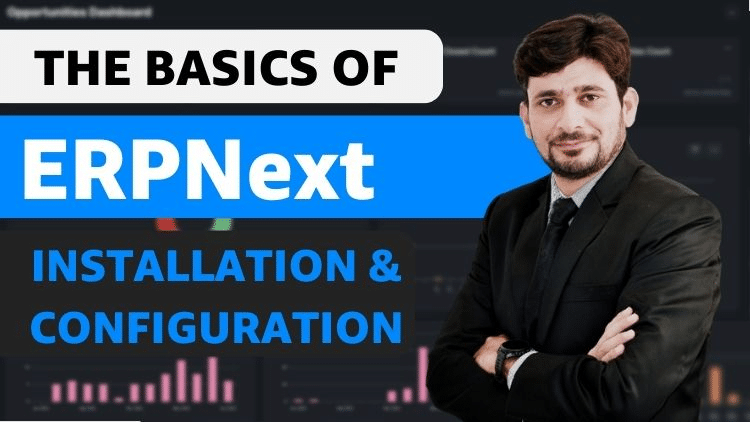
Full course: ERPNext installation and configuration

Frequently asked questions
How do I install ERPNext with Docker?+
Install Docker (Docker Desktop on Windows or Mac), download pwd.yml from the official frappe/frappe_docker repository and run docker compose -p pwd -f pwd.yml up -d. After the create-site container finishes, open http://localhost:8080 and log in as Administrator with the password admin.
What is the default ERPNext Docker login?+
With the official pwd.yml the username is Administrator and the password is admin. The MariaDB root password is also admin, so change both before you put any real data in.
Can I run ERPNext 15 in Docker instead of 16?+
Yes. The current pwd.yml uses the frappe/erpnext:v16 image. Change every frappe/erpnext image tag in the file to v15 (for example frappe/erpnext:v15.123.0) and set the database image to mariadb:10.6, then run docker compose up on a fresh project.
Is the ERPNext pwd.yml file suitable for production?+
No. pwd.yml is a single-file demo with default passwords and no HTTPS. For production with Docker, use the compose.yaml and override files documented in frappe_docker, or the easy-install.py script from the bench repository, or a bench install on Ubuntu 24.04.
Why does localhost:8080 not load after docker compose up?+
The site is still being created. The create-site container installs ERPNext, which takes 3 to 10 minutes on first run. Follow it with docker logs pwd-create-site-1 -f and wait until it exits. If port 8080 is already used, map another port such as 8081:8080 in the frontend service.
Does ERPNext Docker work on Windows Home?+
Yes. Docker Desktop uses the WSL 2 backend, which works on Windows 10 and 11 Home. Hardware virtualization must be enabled in the BIOS or UEFI and WSL 2 installed first.
Related videos
Video library- Cloud and Self-Hosting
Elementary OS 7 Review: The Lightweight Linux Distro That Looks Like a Mac!
· 2:27 · 596 views
Read the guide Watch on YouTube - Business and ERP
ERPNext Frappe HR on Docker: Installation and Setup Guide
· 5:51 · 39.3K views
Watch on YouTube - Cloud and Self-Hosting
Get Started with Docker on Mac: Complete Setup Tutorial
· 2:35 · 1.5K views
Watch on YouTube
Keep reading
 Cloud and Self-HostingList of Best Server Virtualization Software in ItalyA list of the best server virtualization software options for enterprises in Italy, compared on architecture, licensing, and security. · 5 min read
 Cloud and Self-HostingWhen Free Stops Being Free: Understanding Cloud Storage for Business Usesource · 3 min read
 Cloud and Self-HostingExchange Server Database won’t Mount after Dirty Shutdown? Here’s How ESEUTIL can HelpExchange admins sometimes face a situation where the database does not come online or fails to mount itself. There are a number of things that could cause · 5 min read