
Accidentally deleting important files is frustrating, especially if you’ve emptied the recycle bin or used Shift + Delete to delete the file. In that moment, it seems like your document, photo, or project is gone forever. But here’s the truth I’ve learned through experience: that’s not always the case.
When you delete a file permanently, the operating system doesn’t actually erase the data immediately. Instead, it marks the space as available for new data. Until that space gets overwritten, your file remains physically present on the hard drive. This gives you a real chance at Windows file recovery, but you need to act fast. The moment you realize a file is missing, stop using the affected drive. In this guide, I’ll walk you through the best ways to recover permanently deleted files on Windows, share practical steps I’ve used myself, and offer tips to avoid making things worse.
What Happens After Files Are Permanently Deleted?
Understanding the difference between regular deletion and permanent deletion is crucial. When we delete a file normally, it goes to the Recycle Bin, and we can restore it with a couple of clicks. But permanent deletion is different, it happens when we empty the Recycle Bin, use Shift + Delete, or delete files from USB drives, SD cards, or large files that bypass the Recycle Bin entirely.
Even after permanent deletion, the file’s data lingers on the storage device until something new overwrites it. That’s why the first rule we should follow is to stop using the drive immediately, such as avoiding copying, saving, installing, or downloading anything to it. It’s also best to check backups or cloud storage, where we sometimes find copies, if we’re lucky. If it’s an external storage medium such as a USB flash drive or SD card, we should unplug it immediately. An important warning: if you are using a solid-state drive (SSD), the TRIM function may make recovering permanently deleted files more difficult over time. So, don’t delay the recovery process.
How to Recover Permanently Deleted Files on Windows Easily?
- Recover Permanently Deleted Files with RecoveryFox AI
When manual recovery methods don’t work, we should immediately turn to dedicated software. One tool I’ve found reliable is RecoveryFox AI. This program helps me recover deleted files in Windows 11 from internal drives, USB sticks, SD cards, and other external storage. It supports a wide range of file types: documents, Excel sheets, images, RAW photos from digital cameras, 3D graphics, archives, audio files, videos, executables, and database files like SQL and DAT.
Here’s my step-by-step process for using RecoveryFox AI to restore permanently deleted files:
1. Download and install RecoveryFox AI.
2. Launch the software.
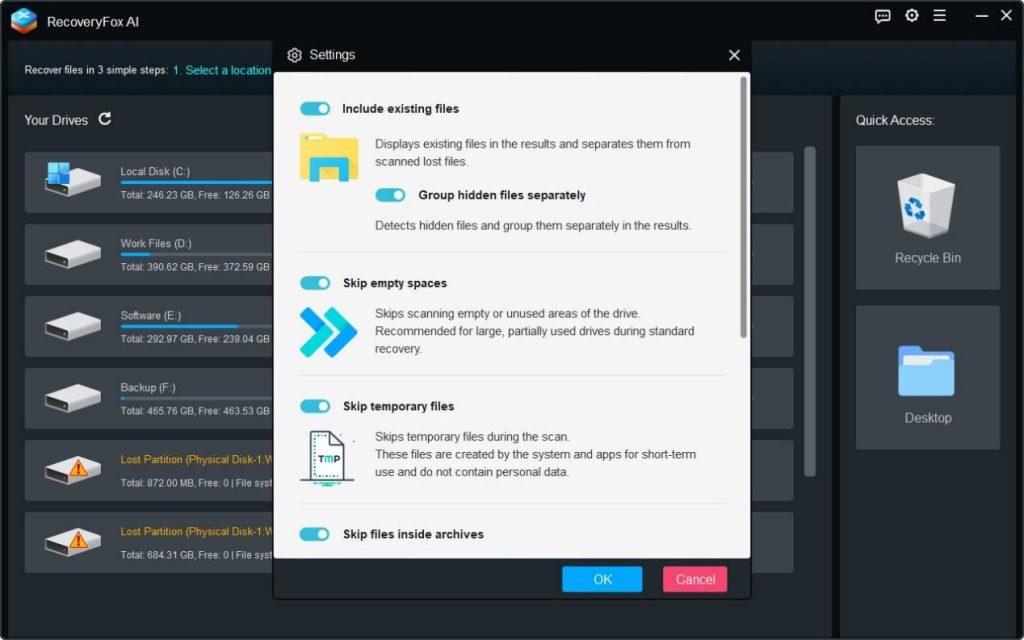
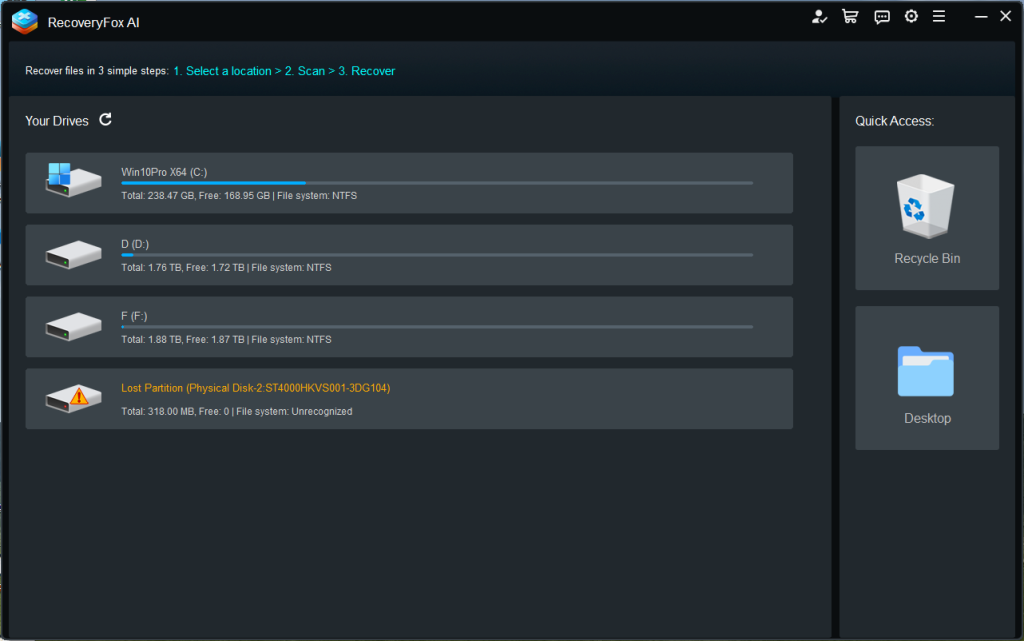
3. Pick the drive where the files were deleted.
4. Run the scan, Quick Scan and AI Scan.
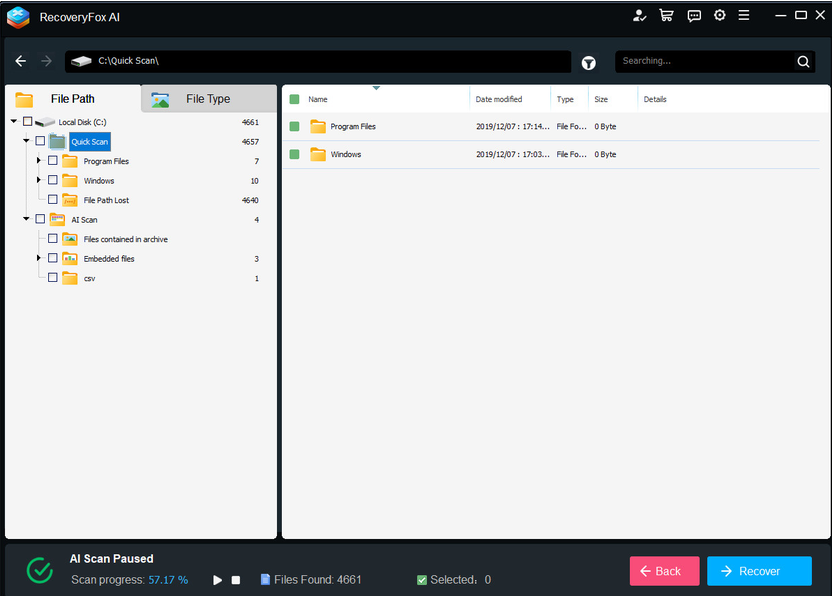
5. Preview the recoverable files.
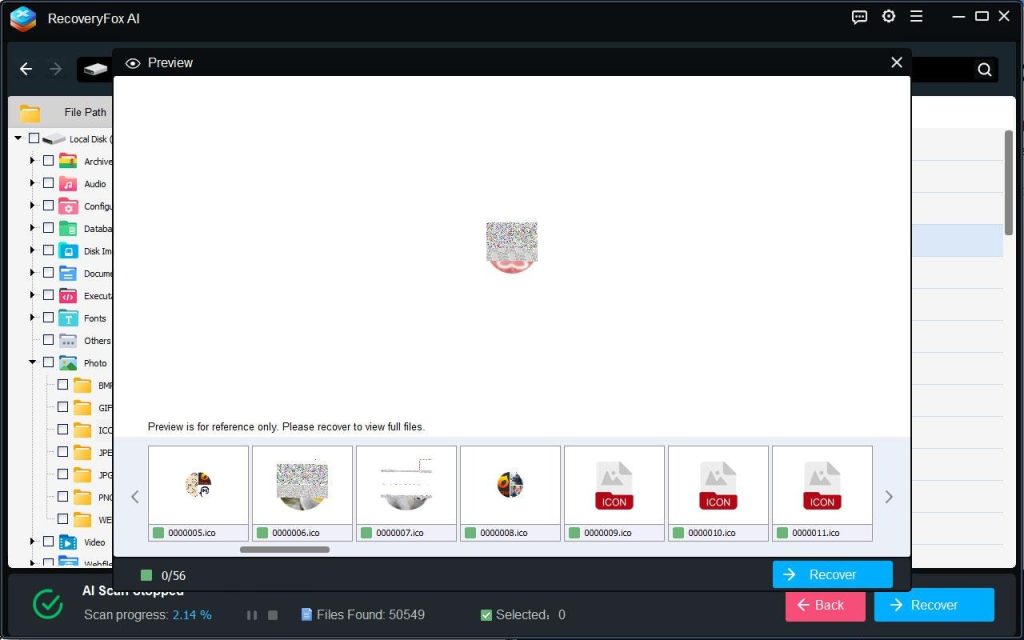
6. Select and recover the files.
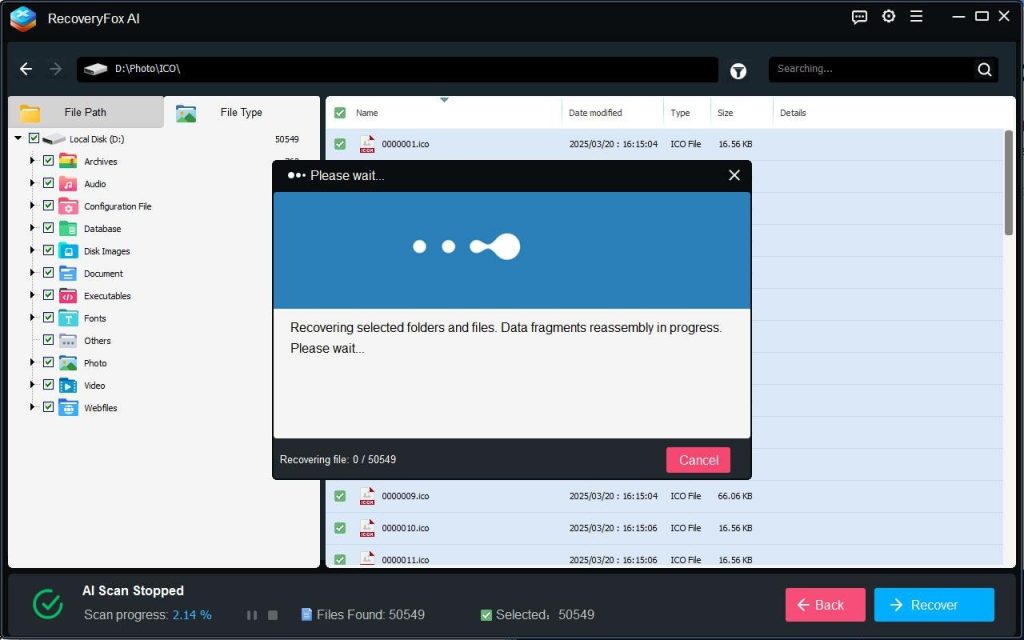
7. Save the recovered files to a different drive.
How Does RecoveryFox AI’s AI Scan Work?
Most recovery tools start with a Quick Scan because it’s fast. But I’ve learned that Quick Scan doesn’t always find everything. If we don’t see our files after the Quick Scan, we should patiently wait for the AI Scan to complete. This deeper scan is especially useful when the drive has been formatted, the storage device is inaccessible, or the files were deleted a long time ago. Yes, the AI Scan takes longer, but it often uncovers files that other methods miss. Depending on the state of our storage device, we can recover documents (Word, Excel, PDF, PowerPoint), images (JPG, PNG, HEIC, RAW), videos, emails, and ZIP files. RecoveryFox AI works on Windows PCs, laptops, SSDs, HDDs, USB drives, and SD cards.
- 3 Free Methods to Recover Permanently Deleted Files
Before using paid software, we can try these free methods first:
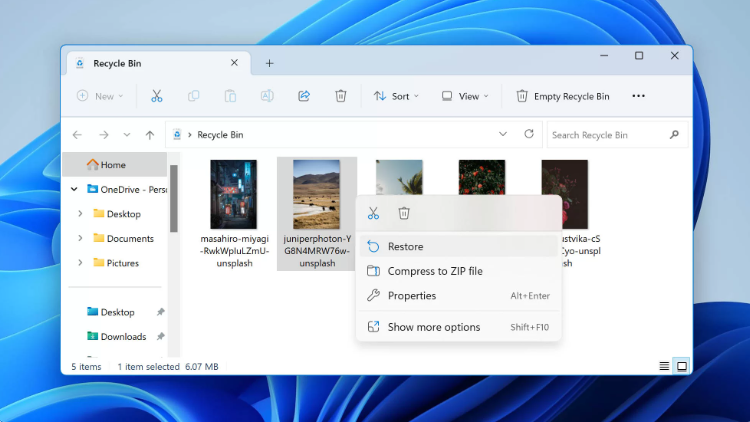
1. Check the Recycle Bin
If we deleted a file normally (not via Shift + Delete), it might still be in the Recycle Bin. We can open the Recycle Bin, search for the file by name or type, right-click it, and select “Restore.” The file returns to its original location instantly.
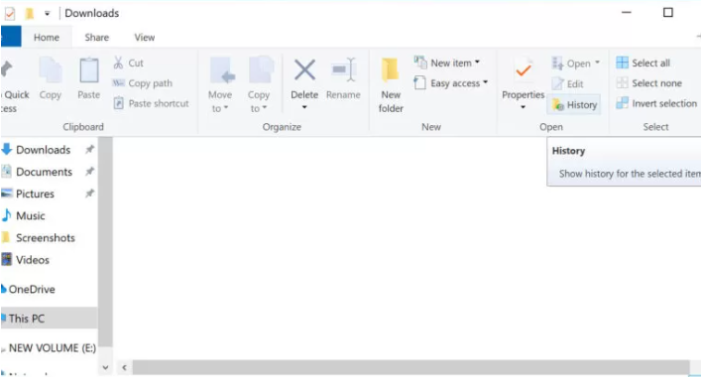
2. Restore from File History
Windows has a built-in backup feature called File History. If we enabled it before, we can recover previous versions of our deleted files. Simply search for “Restore your files with File History” in Windows, browse through available versions, select the file or folder we need, and click “Restore” to send it back to its original spot.
3. Check Cloud Storage
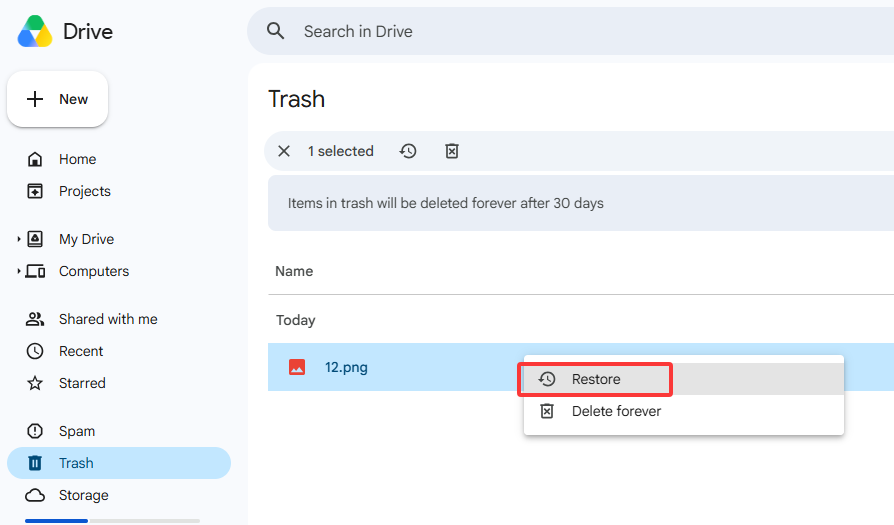
Many cloud services keep deleted files in a trash folder for a period of time. We can log into OneDrive, Google Drive, or Dropbox, navigate to the folder where the file was stored, open the “Recycle Bin” or “Trash” folder, and restore or download the file.
Important Tips to Keep in Mind
We should maintain reasonable expectations regarding data recovery because file recovery isn’t always successful. Once new data overwrites the deleted file’s space, recovery becomes impossible. Other obstacles include formatted drives. That’s where RecoveryFox AI’s AI scan shines, it can scan physical sectors and reconstruct fragmented data to boost the recovery rate.
On the other hand, be sure to save recovered files to a different drive. Never save them back to the original location, as that could overwrite the very files you’re trying to rescue. If the Quick Scan doesn’t find your files, don’t give up, start the AI Scan and wait for it to finish. And always preview recoverable files before restoring them to ensure they’re the correct ones.
Conclusion
Recovering permanently deleted files depends on how the files were deleted and whether the data was overwritten. For example, if the files are in the recycle bin or backup, recovery from the recycle bin or backup is the preferred method. But for files deleted via Shift + Delete, emptied from the Recycle Bin, or removed from external drives, RecoveryFox AI will be our go-to solution. Its unregistered version allows us to run a full AI scan and view the lost files using the preview function. This means we can be 100% certain whether our data can be recovered before spending a penny. Once we confirm that the files exist and are intact, we can upgrade to the full version to unlock unlimited data recovery features.